Use Remove a Color in Camtasia when your video has a uniform backdrop. Apply the effect to the foreground clip, sample the background color, and place another image or video on a lower track. Adjust the key while watching the subject move.
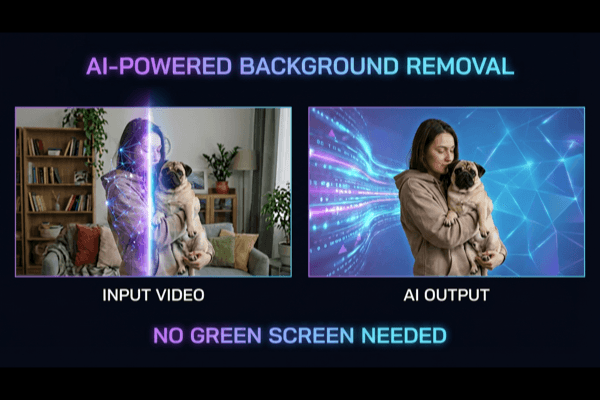
Camtasia also has a separate AI Background Removal effect. It is inaccurate to describe the whole application as limited to green screens. This article focuses on color removal, then explains when to use the AI option instead. Effect availability and export options depend on your installed version and platform.
Pick the correct effect
| What you want to remove | Start with | What to inspect |
|---|---|---|
| Green or blue fabric behind a presenter | Remove a Color | Shadows, reflected color, and clothing that matches the backdrop |
| One flat color in a graphic or animation | Remove a Color | Whether that color also appears inside the artwork |
| An ordinary room behind a speaker | AI Background Removal, if available | Hair, hands, and changes in pose |
| A colored canvas around a clip | Canvas or layout settings | Whether the color belongs to the clip or the project background |
TechSmith’s AI background-removal overview describes the separate effect in Visual Effects and notes that it is designed for camera recordings of a person speaking. It is not a reason to assume every product shot or transparent object will cut out cleanly.
Apply Remove a Color to the foreground clip
- Import the footage and put it on the timeline. Put the replacement image or video on a track below it.
- Open Visual Effects and drag Remove a Color onto the foreground clip.
- Open Properties, then use the Color control and eyedropper to sample the backdrop on the canvas.
- Adjust Tolerance to include more or fewer shades. Use Softness for rough boundaries and Defringe for remaining edge color. Hue adjusts the clip’s color; it does not select the key color. Invert reverses what is removed.
These controls are documented in TechSmith’s Camtasia help manual, Remove a Color. That manual describes the 2022 interface; use it for the effect’s concepts and check labels in your installed version.
Tune the shot with a short review loop
Choose a section where the presenter moves a hand across their body or leans toward the edge of the backdrop. Save a version before adjusting the effect so you have a clear comparison.
Watch that section over the intended replacement. Then temporarily use a contrasting plain background to expose leftover fragments. Make one change, replay the same range, and inspect both the backdrop and the subject. Stop if you gain a cleaner wall by losing part of a shirt or prop; that tradeoff is usually visible in the final video.
A useful acceptance check is specific: “the sleeve stays intact during the gesture and no patch of fabric follows the hand.” “The background mostly disappears” is too vague to guide the next adjustment. There is no universal slider value that guarantees the first result.
Troubleshoot the visible problem
| What you see | What to check before changing the key | Next step |
|---|---|---|
| No replacement background appears | Lower track visibility and its duration | Extend or reveal the replacement layer |
| Part of a shirt becomes transparent | Shared color between clothing and backdrop | Compare a less aggressive key; consider another method |
| A patch remains only when the presenter moves | The original frames at that moment | Look for a changing shadow, exposed backdrop edge, or prop |
| The clip changes color unexpectedly | Whether you adjusted Hue | Compare with the saved version and correct color separately |
| The screen recording also loses colors | Which timeline clip received the effect | Apply removal to the camera layer rather than the combined scene |
If the camera and screen recording have already been flattened into one video, applying the effect can affect matching colors anywhere in that video. Return to the separate camera track if you still have it. A single finished file does not preserve the original recording layers.
Keep the presenter separate from the screen recording
For a training video, keep the screen capture below the camera clip and put annotations where they remain readable. First confirm the cutout; then resize and position the presenter. Recheck the result at the final output size, especially when the camera occupies only a small corner.
Scrub to the end of the camera clip and confirm that the lower layer still covers the canvas. Also check transitions: a clean key in the middle of a shot does not rule out a momentary flash during an effect or cut. Export a short section that includes one transition and one difficult gesture before rendering the entire lesson.
Use AI Background Removal for an ordinary room
If there is no consistent backdrop color, test Camtasia’s AI effect rather than trying to remove several unrelated room colors. In versions that provide it, choose the Background Removal effect from Visual Effects and apply it to the camera clip. Check its result on your own material before continuing the edit.
TechSmith’s background-removal best practices cover lighting, clothing contrast, GPU requirements, and drivers. Consult those requirements if the effect is unavailable or fails on your system. Poor contrast or detailed clothing can still cause missing foreground.
If you need an alternative for an existing clip, compare a short RemoveBGVideo preview using the same motion. Judge the actual export and correction time; a claim that one tool works perfectly on “any video” is not a useful basis for choosing.
Verify the exported background
For a finished lesson, place the intended background in the project and export the composition. For an overlay to use elsewhere, check the alpha-capable export options in your version and test the file in the receiving editor. TechSmith advertises transparent export, but that does not mean every format or preset preserves alpha.
Open a short export over a bright solid and then a dark one. If you see a solid rectangle, check whether the export includes the project background or uses a format without alpha. A black preview by itself does not identify the cause. See the transparent video export guide for the difference between a reusable overlay and a finished composition.
Common questions
Can I remove a white background?
A color key can target white, but it may also affect white clothing, eyes, highlights, or graphics. Check the foreground carefully. If the same color is important to the subject, test segmentation or a mask-based approach instead.
Do I need a new backdrop?
Only if you can reshoot and the current material cannot meet your requirements. First identify whether the failure is a layer setup problem, a color collision, or a segmentation error. Changing the backdrop will not repair an incorrect export setting.
Where should I go if the shot still needs manual correction?
Use the method-selection guide to decide whether another tool is worthwhile. For a short shot that needs local control, the After Effects rotoscoping tutorial explains a separate manual-review workflow.