
How to Remove the BG Color of Video in Camtasia: Step-by-Step Guide
Camtasia has long been a favorite tool for screen recording and video editing, especially among educators and corporate trainers. One common challenge users face is understanding how to remove the bg color of the video in Camtasia effectively. This comprehensive guide will walk you through every method available.
Understanding Camtasia's Background Removal Capabilities
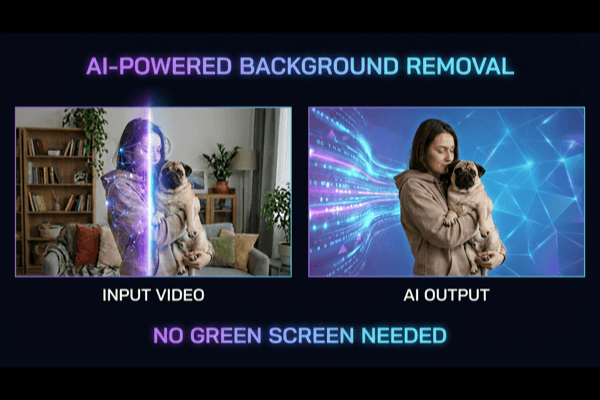
Before diving into how to remove the bg color of the video in Camtasia, it's important to understand what Camtasia can and cannot do. Unlike AI-powered tools, Camtasia uses color-based removal, which works best with solid color backgrounds.
What Camtasia Offers
- Remove a Color effect for chroma keying
- Adjustable tolerance and softness settings
- Real-time preview of changes
- Integration with other Camtasia effects
Limitations to Consider
When learning how to remove the bg color of the video in Camtasia, be aware that:
- Complex backgrounds don't work well
- Similar colors between subject and background cause issues
- Fine details like hair may be challenging
Method 1: Using the Remove a Color Effect
The primary method for how to remove the bg color of the video in Camtasia is the Remove a Color effect:
Step 1: Import Your Video
- Open Camtasia
- Click "Import Media"
- Select your video file
- Drag it to the timeline
Step 2: Access Visual Effects
Navigate to the effects panel where you'll find the tools needed for how to remove the bg color of the video in Camtasia:
- Click on "Visual Effects" in the left panel
- Scroll to find "Remove a Color"
- Drag the effect onto your video clip
Step 3: Select the Background Color
This is the crucial step in how to remove the bg color of the video in Camtasia:
- Click on the color picker (eyedropper tool)
- Click on the background color in your video preview
- The selected color will begin to be removed
Step 4: Adjust Settings
Fine-tune your results:
- Tolerance: Controls how much color variation is removed
- Softness: Smooths the edges of your subject
- Hue: Fine-tunes the exact color being removed
Method 2: Green Screen Workflow
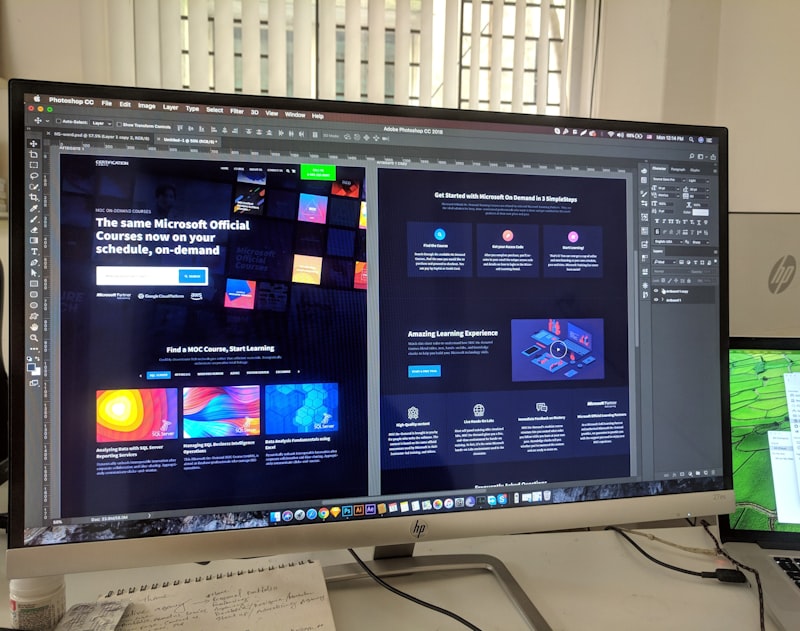
For best results when learning how to remove the bg color of the video in Camtasia, record with a green screen:
Recording Setup
- Use a bright green backdrop (chroma green)
- Light the backdrop evenly to avoid shadows
- Position yourself away from the backdrop
- Wear colors that contrast with green
Processing in Camtasia
Understanding how to remove the bg color of the video in Camtasia with green screen:
- Import your green screen footage
- Apply Remove a Color effect
- Select the green color
- Adjust tolerance for clean removal
Why Green Works Best
When mastering how to remove the bg color of the video in Camtasia:
- Green differs most from human skin tones
- It's easier for software to isolate
- Results are more consistent
Troubleshooting Common Issues
Learning how to remove the bg color of the video in Camtasia includes solving problems:
Issue 1: Subject Partially Removed
Problem: Parts of your subject disappear with the background
Solution: Lower the tolerance setting or choose a different background color
Issue 2: Green Spill on Subject
Problem: Green reflections appear on your subject
Solution: Position further from the backdrop and use better lighting
Issue 3: Rough Edges
Problem: Jagged or flickering edges around your subject
Solution: Increase softness setting and ensure consistent lighting
Issue 4: Shadows Not Removing
Problem: Shadows on the backdrop remain visible
Solution: Light your backdrop more evenly or increase tolerance
Advanced Techniques
Once you understand the basics of how to remove the bg color of the video in Camtasia, try these advanced methods:
Layering Multiple Effects
- Apply Remove a Color for primary removal
- Add color adjustments to match new background
- Use Clip Speed to control timing
- Apply visual effects for polish
Combining with Screen Recording
When you need to show how to remove the bg color of the video in Camtasia for tutorials:
- Record your screen with your webcam overlay
- Position webcam footage over the recording
- Apply background removal to just the webcam layer
Creating Professional Presentations
Use background removal for:
- Training videos with clean presenter overlay
- Product demonstrations
- Educational content
When Camtasia Isn't Enough

While learning how to remove the bg color of the video in Camtasia is valuable, recognize its limitations:
Complex Backgrounds
Camtasia struggles with:
- Natural environments
- Patterned backgrounds
- Moving backgrounds
Solution: AI-Powered Tools
For these scenarios, consider RemoveBGVideo:
- Works with any background
- No green screen required
- Superior edge detection
Workflow Optimization
Maximize efficiency when applying how to remove the bg color of the video in Camtasia:
Pre-Production
- Plan your backdrop before recording
- Check lighting consistency
- Test a short clip first
Production
- Record at highest quality
- Maintain consistent positioning
- Avoid shadows on the backdrop
Post-Production
- Apply Remove a Color effect
- Fine-tune settings
- Add replacement background
- Export at optimal quality
Comparing Methods
| Method | Difficulty | Quality | Use Case |
|---|
| Solid Color Removal | Easy | Good | Simple backdrops |
|---|
| Green Screen | Medium | Excellent | Prepared recordings |
|---|
| AI Tools (RemoveBGVideo) | Easy | Excellent | Any video |
|---|
Tips from Camtasia Experts

Professionals share their advice on how to remove the bg color of the video in Camtasia:
Lighting is Everything
Invest in proper lighting to achieve professional results. Even lighting on your backdrop is more important than expensive equipment.
Test Before Full Recording
Always process a test clip before recording long videos to verify your setup works correctly.
Keep Originals
Never overwrite your original files. Keep backups in case you need to reprocess.
Consider Alternatives
For complex projects where you need to know more than how to remove the bg color of the video in Camtasia, explore dedicated tools.
Conclusion
Mastering how to remove the bg color of the video in Camtasia empowers you to create professional-looking videos without expensive studio equipment. The key takeaways are:
- Use solid color backgrounds, preferably green
- Light your backdrop evenly
- Apply Remove a Color effect correctly
- Adjust tolerance and softness for best results
- Know when to use alternative tools
While Camtasia excels for screen recording and basic color removal, complex backgrounds require more sophisticated solutions. For any video background removal needs, try RemoveBGVideo.com for AI-powered processing that handles any background type!

Ready to Try It Yourself?
Put what you learned into practice. Remove video backgrounds with our AI-powered tool.
Try Free Now